App overview
Understanding the Dashboard is essential to manage your assets efficiently on Colend.
The two main sections are “Assets to Supply” on the left and “Assets to Borrow” on the right.
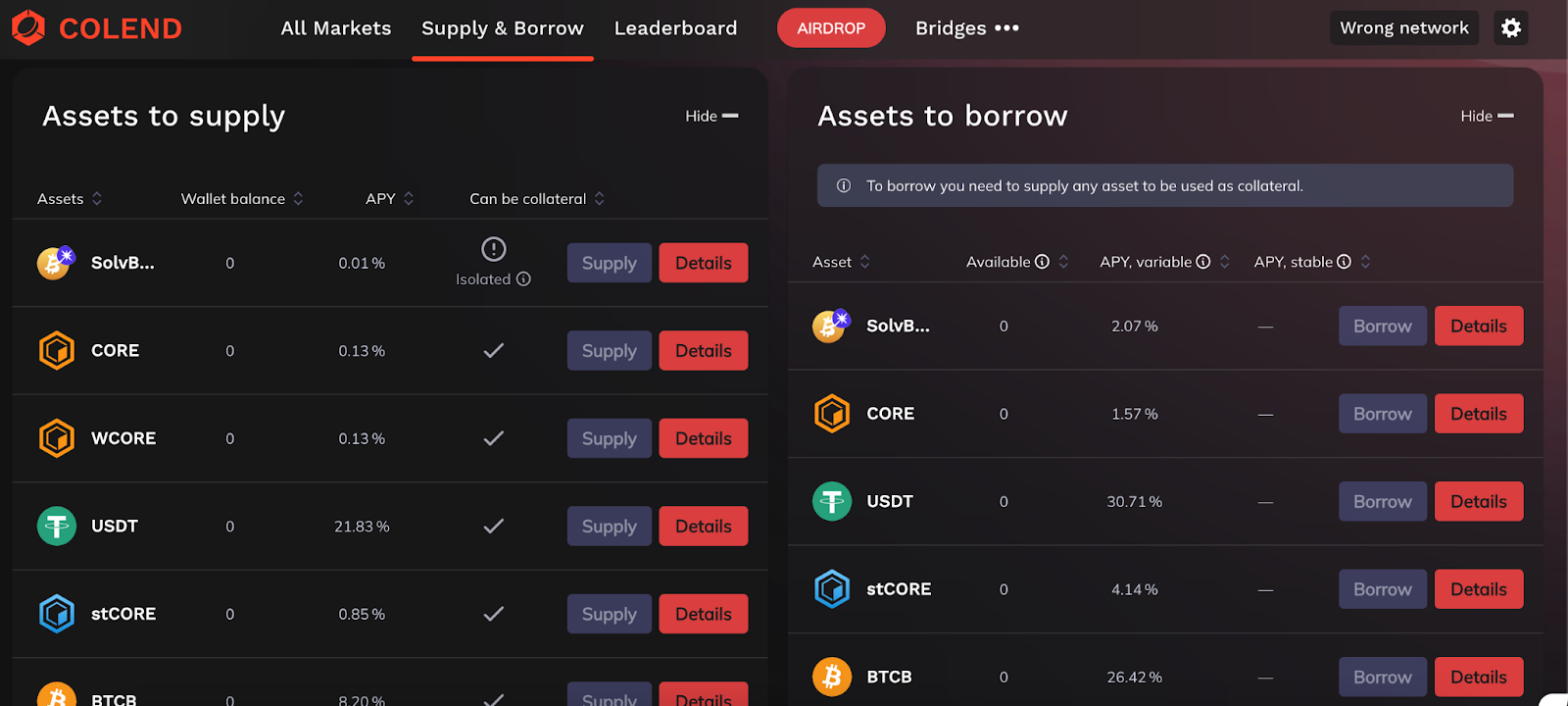
“Assets to Supply” section
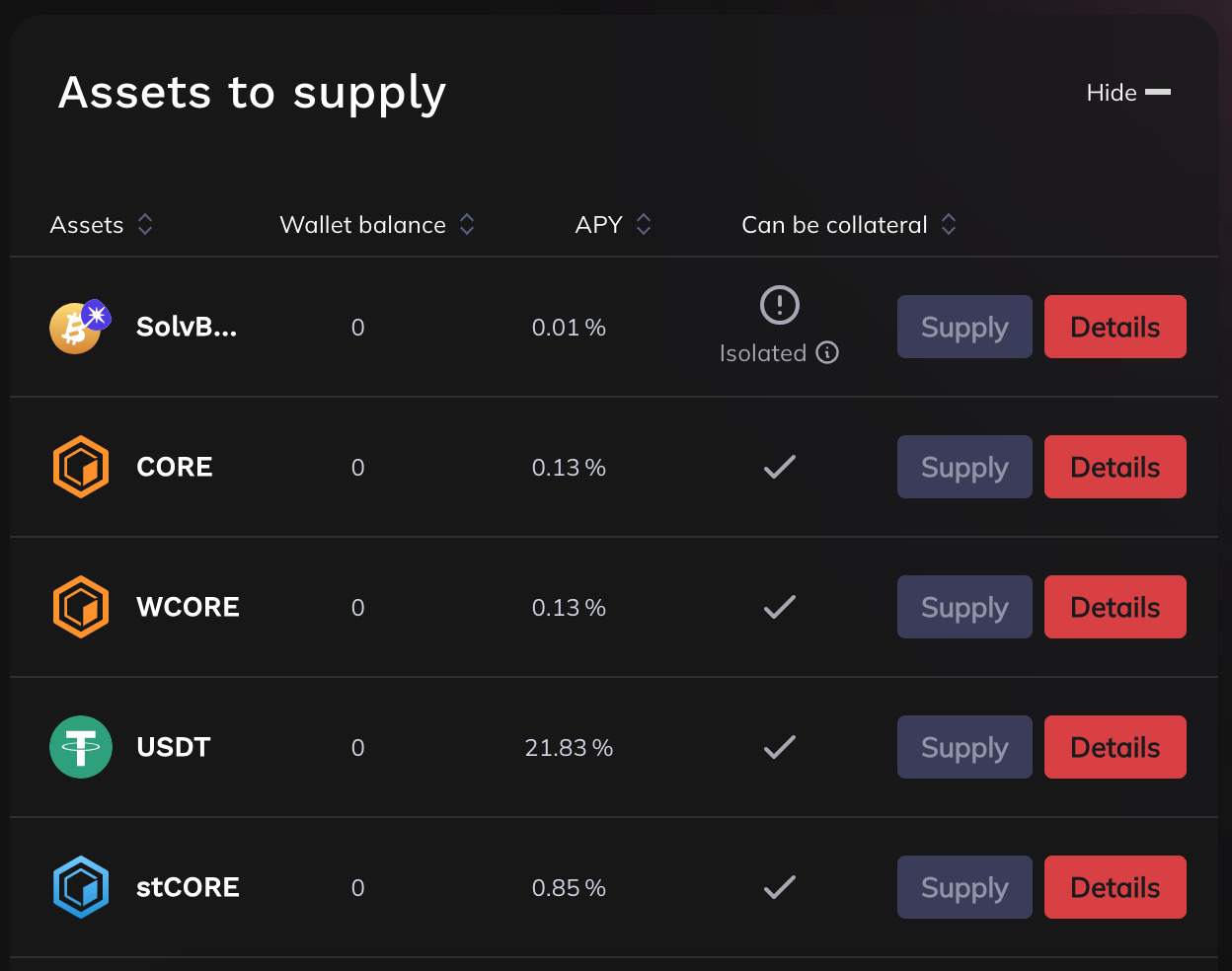
This section shows your balance, APYs, and whether an asset qualifies as collateral.
Click ‘Details’ to learn more about any asset.
“Assets to Borrow” section
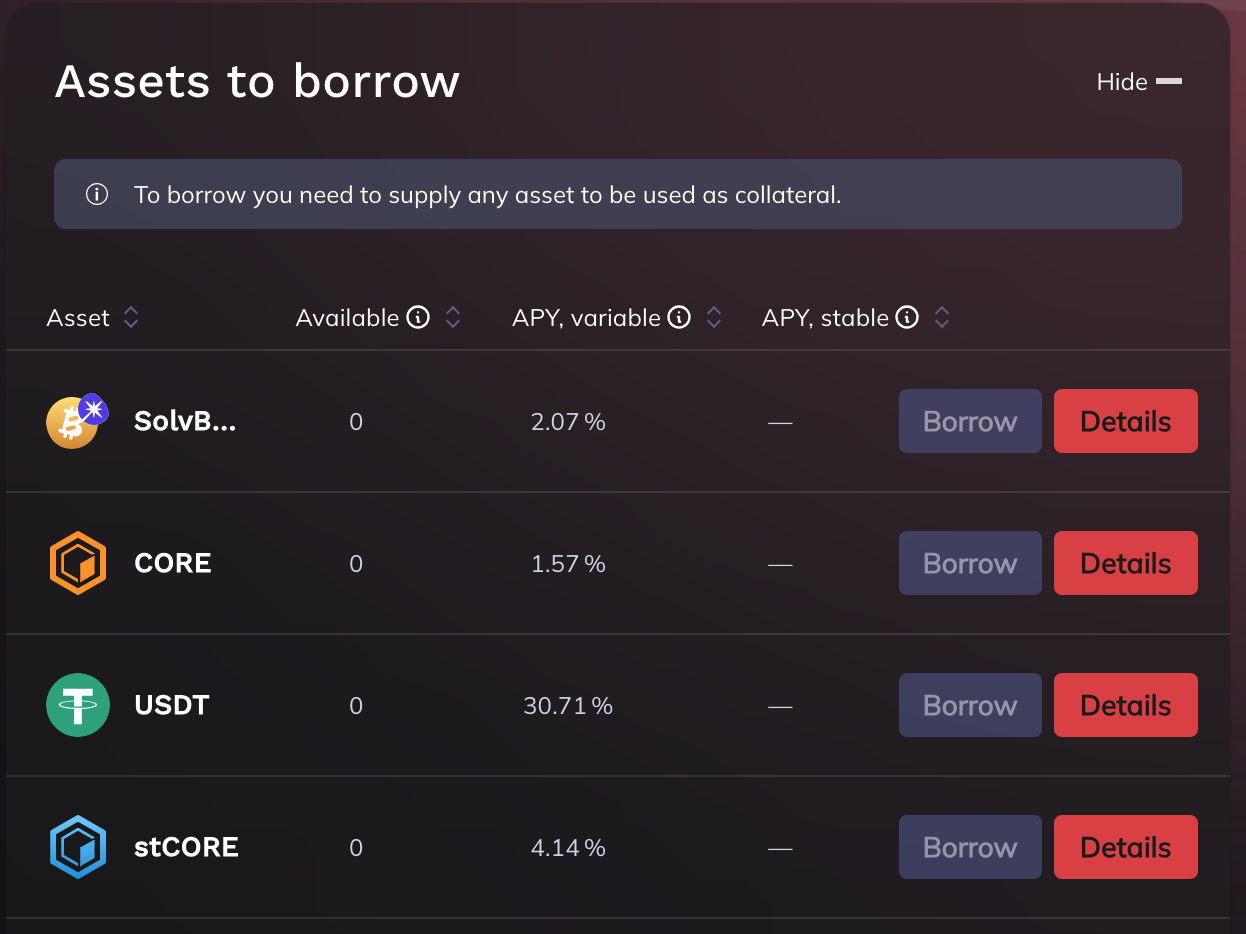
Here, you can see the borrowable assets and their rates (APY).
Click “Details” for more insights on each asset.
After supplying and borrowing, the “Your Supplies” and “Your Borrows” sections will display
key metrics about your assets.
“Your supplies” section
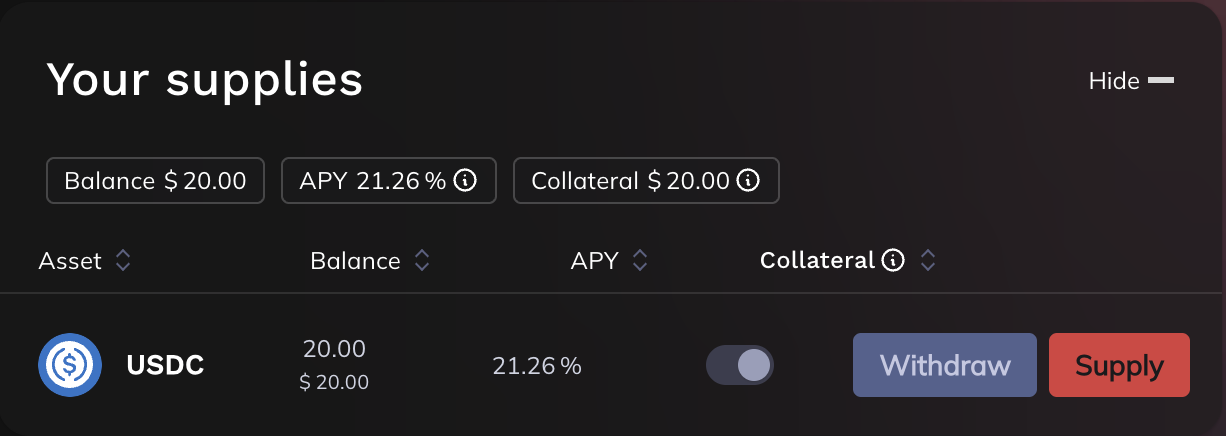
You can view the balance of your supply, the interest you’re earning, and the amount being used
as collateral.
You can add more assets by clicking the “Supply” button or withdraw them by clicking “Withdraw”.
Make sure to repay your debts before withdrawing any collateral.
“Your borrows” section
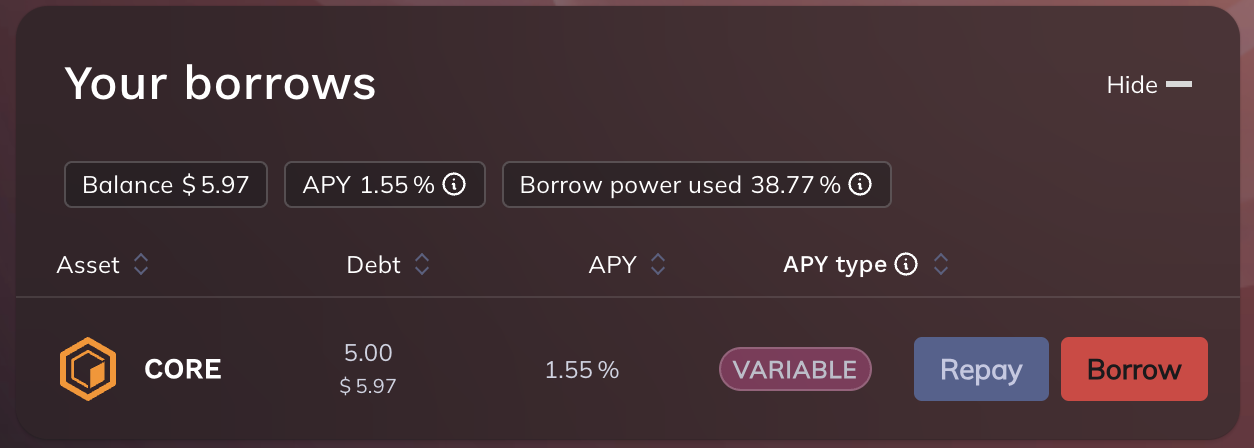
You can view your debt, the APY, and its type (variable or fixed). You can also see the Borrow Power you’ve used, which is proportional to the amount of collateral provided.
To repay your loan, click “Repay” or to borrow more, click “Borrow”
Top section
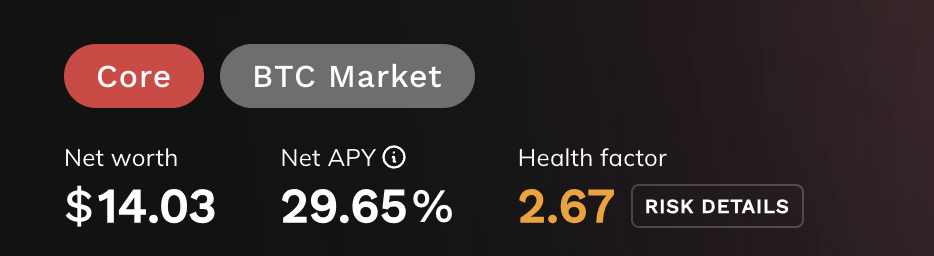
At the top of the screen, you’ll find key metrics that provide an overview of your wallet’s performance.
These include your net worth, your account’s net APY (the combined effect of all supply and borrow yields), and your Health Factor.
Now that you’re familiar with the Colend interface, let’s move on to connecting your wallet and supplying assets. → Connect and Supply